Student: View Transcript
In this section you act as a Student — logging into the Cert Portal to view your full transcript with private fields visible.
The Scenario
A student wants to review all their certificates, including private details like grade and degree that employers cannot see. They log into the Cert Portal using their organization’s credentials.
Step 1: Open the Cert Portal
Navigate to the Cert Portal: Open
Notice the Student Login button in the top-right corner.
Step 2: Log In
-
Click Student Login.
-
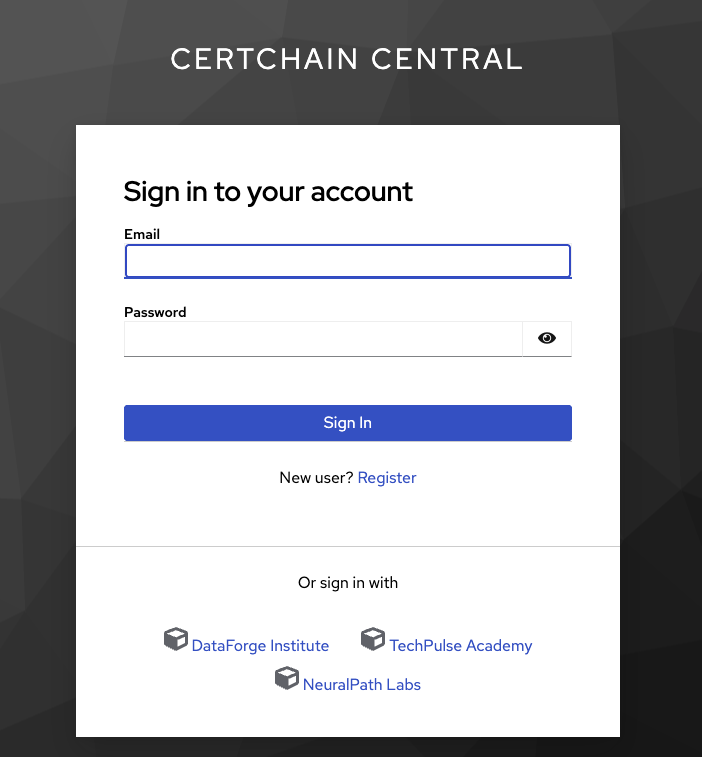
You are redirected to the Central Keycloak login page.
-
You’ll see buttons for each organization: TechPulse Academy, DataForge Institute, NeuralPath Labs.
-
Click TechPulse Academy to log in as a TechPulse student.
-
You are redirected to the TechPulse Keycloak. Enter credentials:
student01@techpulse.demo/student -
After successful login, you are returned to the Cert Portal — now authenticated.
|
The Central Keycloak acts as a federation hub with OIDC identity brokering. Each organization button is a registered Identity Provider that redirects authentication to the corresponding org’s Keycloak. This means the central portal never stores user passwords. See Security & Identity for details. |
Step 3: View Your Transcript
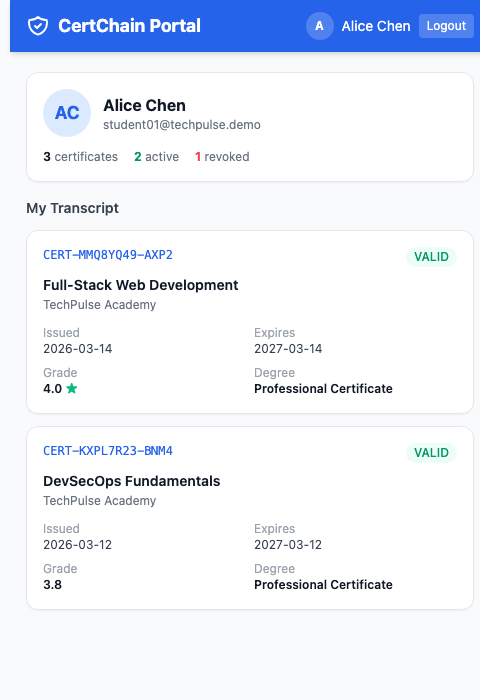
After login, click My Transcript (or navigate to the transcript section).
You now see all certificates issued to your email address across the entire network. For each certificate you own, you can see:
-
Certificate ID, status (VALID / REVOKED)
-
Course name, organization
-
Issue and expiry dates
-
Grade and Degree — the private fields that anonymous verifiers cannot see
Step 4: View Certificate Details
Click on any certificate to see its full details. Compare this to what an anonymous employer sees:
| Field | Employer (anonymous) | Student (logged in) |
|---|---|---|
Status |
✓ |
✓ |
Student Name |
✓ |
✓ |
Course |
✓ |
✓ |
Organization |
✓ |
✓ |
Issue / Expiry Date |
✓ |
✓ |
Grade |
✗ hidden |
✓ visible |
Degree |
✗ hidden |
✓ visible |
Student ID |
✗ hidden |
✓ visible |
How Privacy Works
The privacy enforcement happens server-side in the verify-api:
-
The student’s JWT contains their email address (from Keycloak)
-
The
verify-apicompares the JWT email with the certificate’sstudentIDfield -
If they match → the student owns this certificate → all fields are returned
-
If they don’t match → only public fields are returned
This means:
-
A student can see grade/degree on their own certificates
-
A student cannot see grade/degree on someone else’s certificates
-
No client-side filtering that could be bypassed
Identity Brokering Explained
When you clicked "Student Login", here’s what happened behind the scenes:
-
cert-portal redirected to Central Keycloak (
certchainnamespace) -
Central Keycloak displayed the organization buttons (TechPulse, DataForge, NeuralPath)
-
You clicked your organization and were redirected to TechPulse Keycloak (
certchain-techpulsenamespace) -
TechPulse Keycloak authenticated you against its local user store
-
A token was issued and returned to cert-portal via the Central Keycloak broker
This federation model means:
-
Each org manages its own users independently
-
Students log in with their org credentials
-
The central portal doesn’t store any user passwords
-
Adding a new organization is just adding a new identity provider